Open PDF in Google Docs
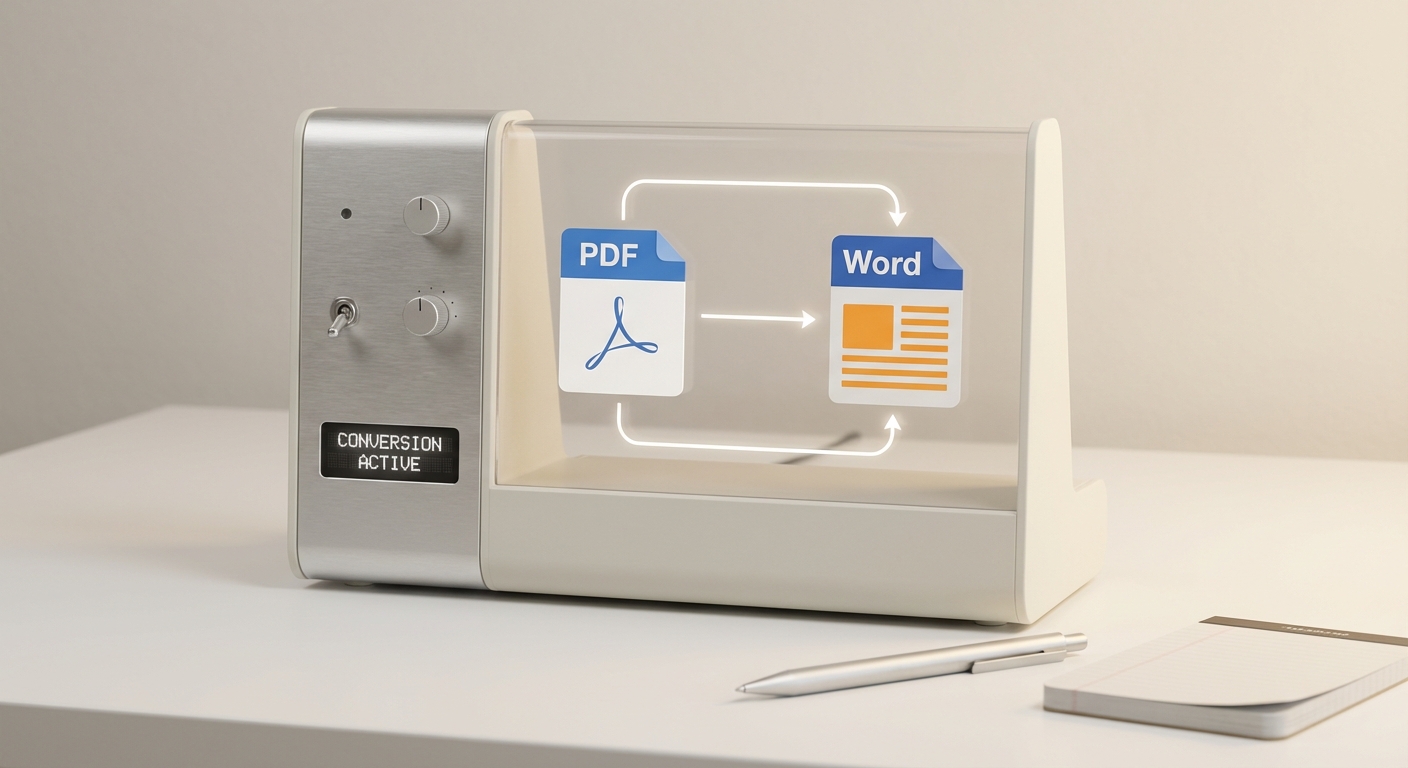
Google Docs can open many PDFs, but it converts them into editable text. That conversion is often imperfect—especially for forms, scans, or complex layouts. This guide explains when Docs works well and when it doesn’t.
When Google Docs Works Well
- Simple, text‑heavy PDFs
- Clean layouts with minimal tables
- Small files with consistent fonts
Where It Breaks
- Fillable forms (fields are lost)
- Scanned PDFs (no text to convert)
- Complex layouts (tables, columns, or multi‑page forms)
A Safer Workflow
- Upload the PDF to Google Drive.
- Choose Open with → Google Docs.
- Review formatting immediately.
- Export back to PDF when finished.
If the layout matters, consider using a PDF‑native editor instead of a conversion workflow.
How AutoFillPDF Helps
AutoFillPDF avoids conversion issues entirely. We fill PDFs in place, even if they are scans or have no fields, so you don’t lose formatting or structure.
Why This Matters
- No layout drift from conversion.
- Handles scanned and flattened PDFs.
- Output stays a PDF, not a converted document.
FAQs
Does Google Docs preserve PDF formatting? Only for simple PDFs. Forms and complex layouts often break.
Can Google Docs edit fillable fields? No. It converts the PDF to a document and drops form fields.
Can AutoFillPDF fill a PDF without converting it? Yes. We fill directly in the PDF, even when fields are missing.