How to Search Words on a PDF
Searching a PDF is easy when the text is selectable. It’s much harder when the PDF is a scan or a flattened export. This guide shows how to identify which type of PDF you have and what to do next.
Step 1: Check if Text Is Selectable
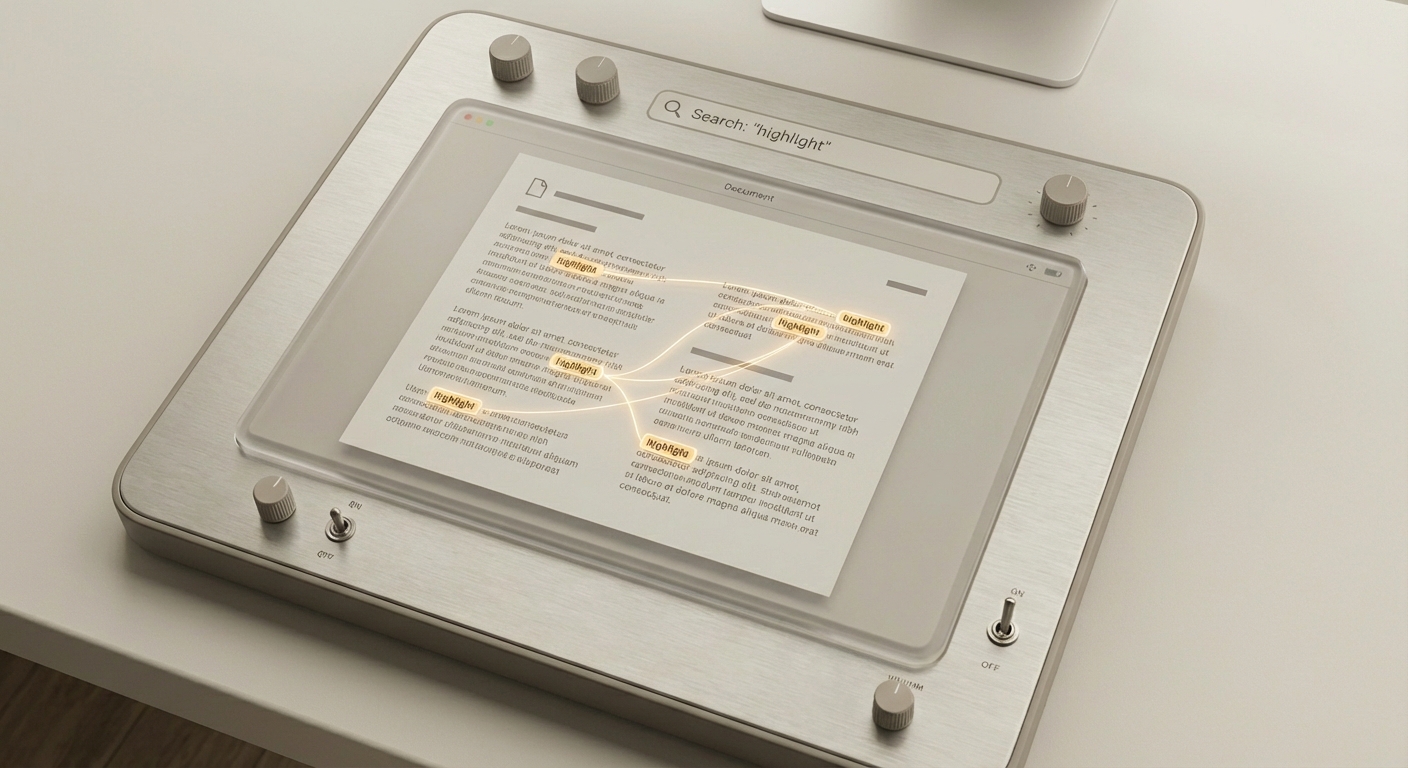
Open the PDF and try to highlight a word. If you can select text, use Ctrl+F (Windows/Linux) or Command+F (Mac) to search instantly.
Step 2: If It’s a Scan, Use OCR
Scanned PDFs are images. You can’t search them until OCR (optical character recognition) converts them into text. Many editors and online tools provide OCR, but quality varies based on scan clarity.
Step 3: Verify the Results
After OCR, search again. If results are incomplete, the scan may be skewed or low‑resolution. Re‑scan if possible.
How AutoFillPDF Helps
AutoFillPDF detects fields and content even when a PDF is scanned or flattened. If your goal is to fill forms instead of just searching, we skip manual OCR and handle the full fill workflow automatically.
Why This Matters
- Works even when PDFs have no selectable text.
- Handles weird layouts and mixed formatting.
- Produces a clean, re‑openable PDF.
FAQs
Why can’t I search this PDF? Because it’s likely a scanned image rather than real text.
Does OCR always work? OCR works best on clean scans. Skewed or low‑resolution scans reduce accuracy.
Can AutoFillPDF search or fill scanned PDFs? Yes. We detect fields and content even when there are no fillable fields present.