How to Edit a Scanned PDF in Word
Scanned PDFs are images. Word can open them, but it needs OCR to convert the scan into editable text. This guide shows the cleanest path and what to expect.
Step 1: Confirm It’s a Scan
Try selecting text. If you can’t highlight words, the PDF is an image scan.
Step 2: Run OCR
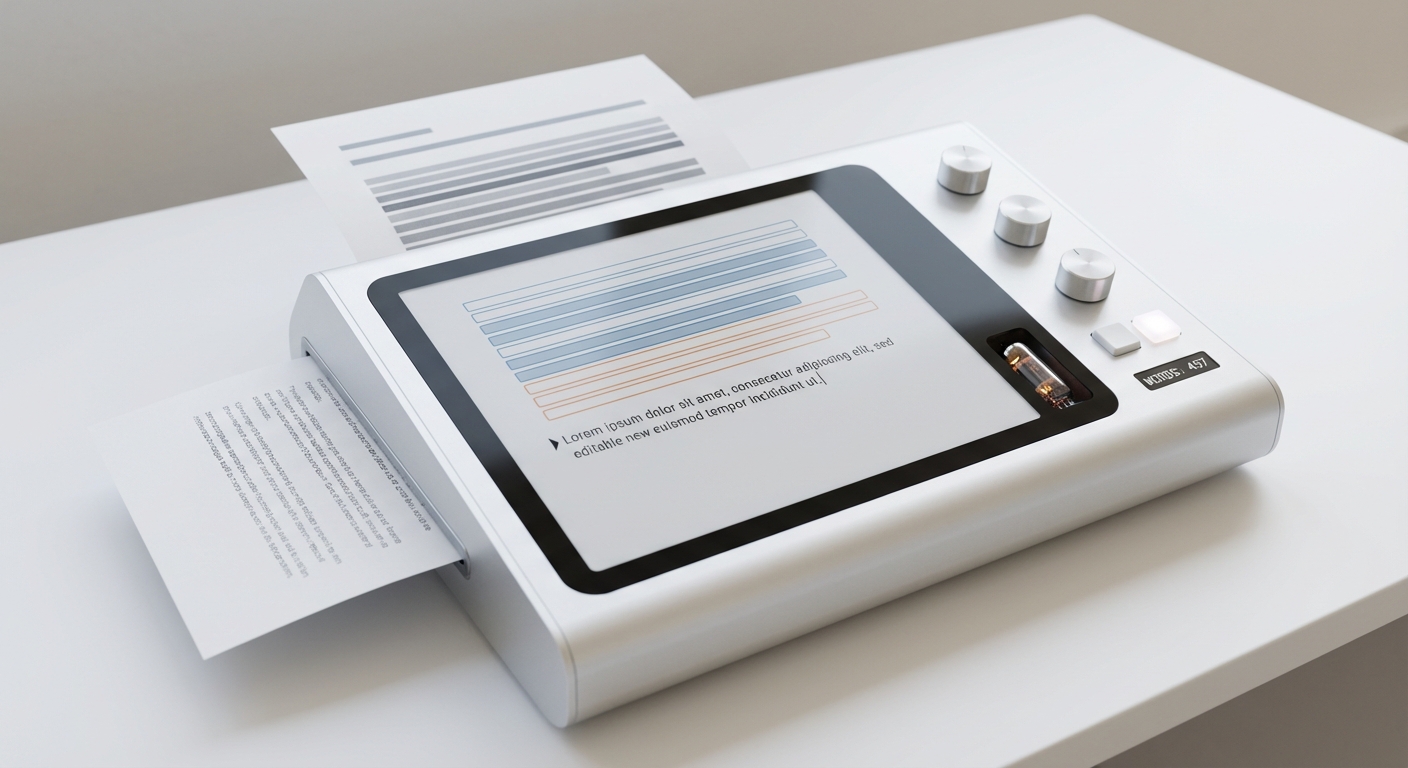
Use Word’s built‑in conversion or an OCR tool first. OCR turns images into text, but accuracy depends on scan quality.
Step 3: Edit in Word
Once OCR finishes, you can edit text normally. Review formatting carefully—tables, columns, and line breaks often shift.
Common Pitfalls
- OCR errors (misread letters and numbers)
- Misaligned tables and form fields
- Missing checkbox alignment
How AutoFillPDF Helps
If your goal is to fill a scanned form, conversion is often slower than necessary. AutoFillPDF detects fields in scanned or flattened PDFs and fills them end‑to‑end, without converting to Word.
Why This Matters
- No conversion drift.
- Works on scanned forms with no fields.
- Produces a clean output PDF.
FAQs
Can Word edit a scanned PDF directly? Not without OCR. Word must convert the scan into editable text first.
Why does the formatting change after conversion? OCR reconstructs the layout and often gets spacing wrong.
Can AutoFillPDF fill scanned PDFs without OCR? Yes. We detect fields in scans and fill them accurately.