How to Put a PDF Into Word
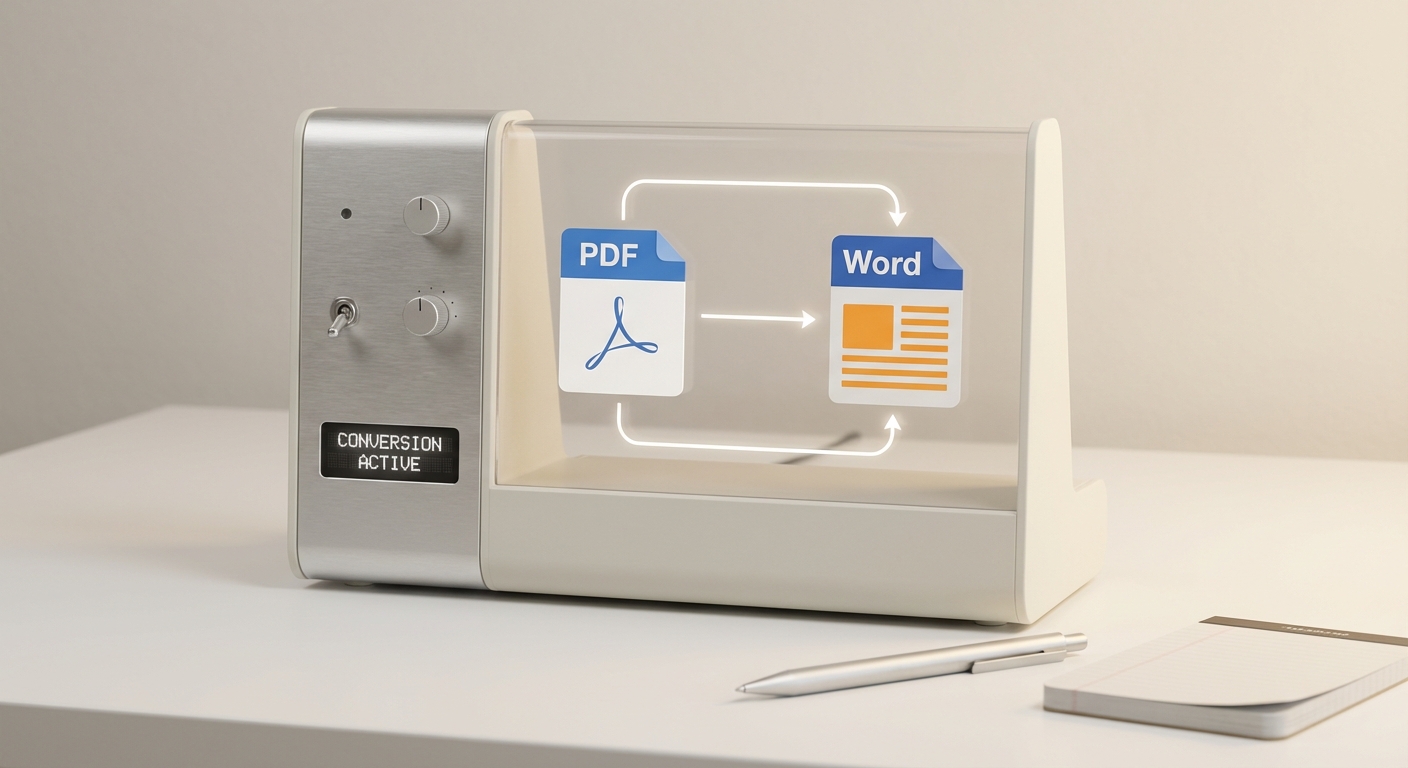
Converting a PDF to Word is common—but it often breaks formatting, especially for forms and scanned documents. This guide helps you choose the right path based on the type of PDF you have.
When Conversion Works
- Simple, text‑heavy PDFs
- Consistent fonts and single‑column layouts
- Files with minimal form fields
When It Fails
- Scanned PDFs (no actual text)
- Complex layouts and tables
- Fillable PDFs where you need to keep form fields intact
A Safer Conversion Workflow
- Open the PDF in Word or use a conversion tool.
- Review formatting page‑by‑page.
- Re‑export to PDF if needed.
- Validate the output against the original.
How AutoFillPDF Helps
If your goal is to fill out a PDF, conversion is usually the wrong approach. AutoFillPDF fills the PDF directly—even if fields don’t exist—and keeps the original layout intact.
Why This Matters
- No conversion drift or layout loss.
- Works on scans and flattened PDFs.
- Produces a clean, re‑openable PDF.
FAQs
Can Word edit fillable PDF fields? No. Word converts the PDF into a document and removes form fields.
Why does my PDF look different after conversion? Conversion re‑creates layout from scratch. Complex PDFs rarely convert perfectly.
Can AutoFillPDF fill my PDF without converting? Yes. We fill directly in the PDF, even on non‑fillable files.