Linux PDF Editor: What Works and What Doesn’t
Linux has solid PDF viewers, but editing is a different story. Many tools handle annotations well, but struggle with scanned PDFs or non‑fillable forms. This guide helps you choose the right workflow.
Common Linux PDF Options
- Built‑in viewers for quick annotations and highlighting.
- Desktop editors for text edits and minor layout changes.
- Online tools for form filling when local apps fall short.
Where Linux Tools Struggle
- Scanned PDFs with no selectable text.
- Complex form fields that don’t map cleanly.
- Flattened PDFs that look fillable but aren’t.
A Reliable Workflow
- Identify whether the PDF is fillable.
- If it’s scanned, use OCR before editing.
- For forms, use a dedicated form‑filling tool.
How AutoFillPDF Helps
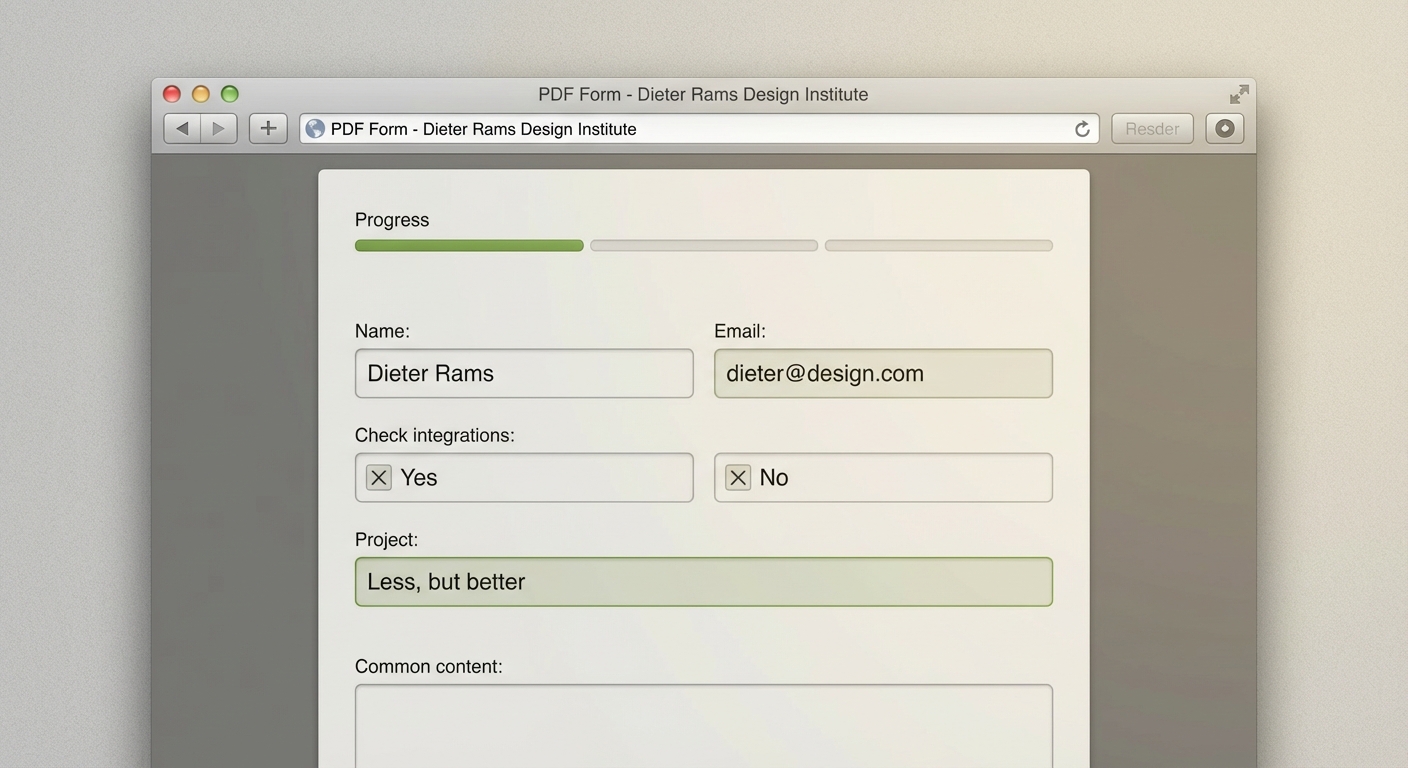
AutoFillPDF works in the browser and handles PDFs that Linux editors often can’t: scanned forms, flattened exports, and irregular layouts. We detect fields automatically and fill the form end‑to‑end.
Why This Matters
- No need for multiple tools.
- Works on weird layouts and scans.
- Clean output you can re‑open and verify.
FAQs
Do Linux PDF editors support form filling? Some do, but results vary. Many tools only support annotations.
Can Linux editors handle scanned PDFs? Only with OCR. Otherwise, they treat the PDF as an image.
Can AutoFillPDF be used on Linux? Yes. It’s web‑based and works on any OS.