
Fill Out a PDF Form Online Without the Guesswork
Filling a PDF online should feel as simple as completing a web form. In practice, it often fails because many PDFs aren’t truly fillable. This guide shows how online filling works, what to do when fields don’t accept input, and how to finish with a clean, valid PDF.
Why This Is Hard (Even Online)
Not all PDFs contain real form fields. Some are flattened exports or scans. Others have fields, but they’re misaligned, locked, or formatted inconsistently. That’s why online tools often appear to “work” but fail on download or validation.
Step 1: Check if the PDF Is Actually Fillable
Many PDFs look like forms but are just flat text and lines. A fillable PDF has interactive form fields that accept typed input. If your cursor doesn’t land in a field, the file is likely non‑fillable and needs conversion or AI‑based field detection.
Step 2: Use a Reliable Online Filling Tool
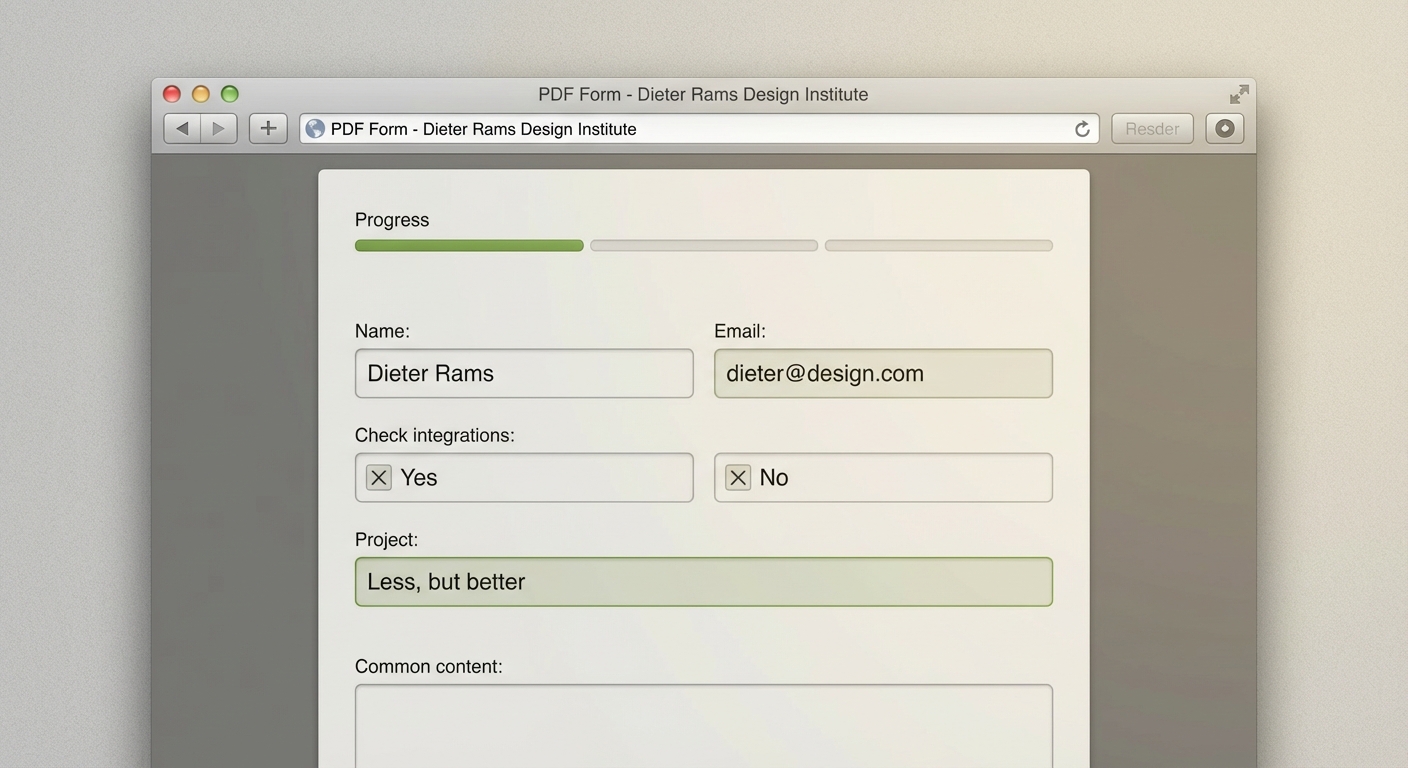
Online tools usually offer a “Fill & Sign” or “Form Fill” mode. Adobe’s online Fill & Sign experience is designed for typing, checkboxes, initials, and signatures in a browser. It works best when the PDF is already fillable but can also overlay text on non‑fillable documents.
If you’re using Microsoft Edge, its built‑in PDF tools let you type into form fields, add text, and annotate without installing extra software. That’s useful for quick one‑off forms.
If you need a more guided, signature‑heavy flow, services like DocuSign provide a browser‑based editor to complete and sign PDFs online.
Step 3: Save the PDF Correctly
After filling, always download and re‑open the file to confirm fields are saved. Some in‑browser viewers display data that isn’t actually embedded. A proper save should preserve typed values and any signature elements.
Common Problems (and Fixes)
Problem: Fields are unresponsive. The PDF is likely non‑fillable. Convert it to a fillable form or use AI field detection.
Problem: Data disappears after download. You may be editing a preview layer. Use a tool that embeds text into the PDF, not just the viewer.
Problem: Text alignment looks off. Adjust font size or line spacing. Some tools allow per‑field font control or autosizing.
Best Practices for Online PDF Filling
- Use the latest PDF version from the official source.
- Fill in a dedicated PDF editor (not just a preview window) when accuracy matters.
- Validate required fields before sending.
- Save a copy for records and audit trails.
When Online Filling Isn’t Enough
If your PDFs are scans, flattened, or missing fields, use AutoFillPDF to detect fields automatically and fill them with data. It’s built for volume workflows where manual typing isn’t viable.
How AutoFillPDF Fixes It End-to-End
- Detects fields even when none exist (scans, images, or flattened PDFs).
- Handles weird layouts and mixed formatting without manual cleanup.
- Fills existing fields or creates new ones as needed.
- Uses our own trained models for PDF field detection and mapping.
Related guides: Make a PDF Fillable, Fill PDFs Automatically, AI PDF Field Detection.
FAQs
Can I fill a PDF online without installing software? Yes. Browser‑based tools and built‑in viewers can handle basic fillable PDFs.
What if my PDF is not fillable? You’ll need to convert it to a fillable PDF or use AI to detect and create fields.
Do online tools support signatures? Most do. Look for “Fill & Sign” or “Sign” features in the editor.