
How to Write on a PDF Document
Writing on a PDF should be as simple as writing on paper. In practice, PDFs resist modification by design. This guide covers every practical method for adding text, handwritten notes, and signatures to PDF files—without printing.
The Core Problem
PDFs are containers, not documents. They store fixed content meant to look identical everywhere. When you "write" on a PDF, you're actually adding a layer on top of the original content. Understanding this helps explain why some methods work better than others.
Method 1: Write on PDFs Using Your Mac
Mac users have the best built-in PDF writing tools.
Using Preview (Free, Built-in):
- Open the PDF in Preview
- Click the Markup toolbar icon (pen tip in a circle)
- Select the Text tool (T icon) to add typed text
- Select the Signature tool to add your signature
- Select the Sketch tool to draw freehand
Preview saves annotations directly into the PDF, so recipients see your additions without needing special software.
Handwriting with Apple Pencil (iPad): If you have Sidecar set up, you can use your iPad as a drawing tablet and write directly on PDFs open in Preview on your Mac.
Method 2: Write on PDFs in Windows
Windows doesn't include a full PDF editor, but you have options.
Microsoft Edge:
- Open the PDF in Edge (right-click → Open with → Microsoft Edge)
- Use the Draw tool for freehand writing
- Use the Add text tool for typed text
- Use the Highlight tool for marking up content
Edge saves edits directly to the PDF when you click Save.
Adobe Acrobat Reader DC (Free):
- Open the PDF
- Click Fill & Sign in the right panel
- Click "Add Text" to type anywhere
- Click "Sign" to add a signature
- Click "Add Initials" for initials
The free Reader lets you write on PDFs but won't edit existing text.
Method 3: Write on PDFs Online (Free)
No software? Browser-based tools handle writing on PDFs.
Smallpdf: Upload your PDF, use the Text tool to add typed content, or use the Draw tool for freehand writing. Free users get limited daily tasks.
iLovePDF: Their Edit PDF tool lets you add text, draw freehand, and insert shapes. Works directly in your browser with no sign-up required for basic use.
PDFgear: Completely free with no watermarks. Add text, draw, annotate, and sign PDFs online. Also offers a desktop app for offline use.
Sejda: Free for documents under 200 pages. Offers text, freehand drawing, and shape tools. No watermarks on free tier.
Online Tool Comparison
| Tool | Free Tier | Watermark | Handwriting | Typed Text |
|---|---|---|---|---|
| Smallpdf | 2 tasks/day | No | Yes | Yes |
| iLovePDF | Limited | No | Yes | Yes |
| PDFgear | Unlimited | No | Yes | Yes |
| Sejda | 3 tasks/hour | No | Yes | Yes |
Method 4: Write on PDFs on iPhone and iPad
Mobile devices make PDF writing surprisingly easy.
Using Files App (Free, Built-in):
- Open the PDF in Files
- Tap the Markup icon (pen tip)
- Use drawing tools for handwriting
- Tap + to add text boxes or signatures
- Tap Done and save
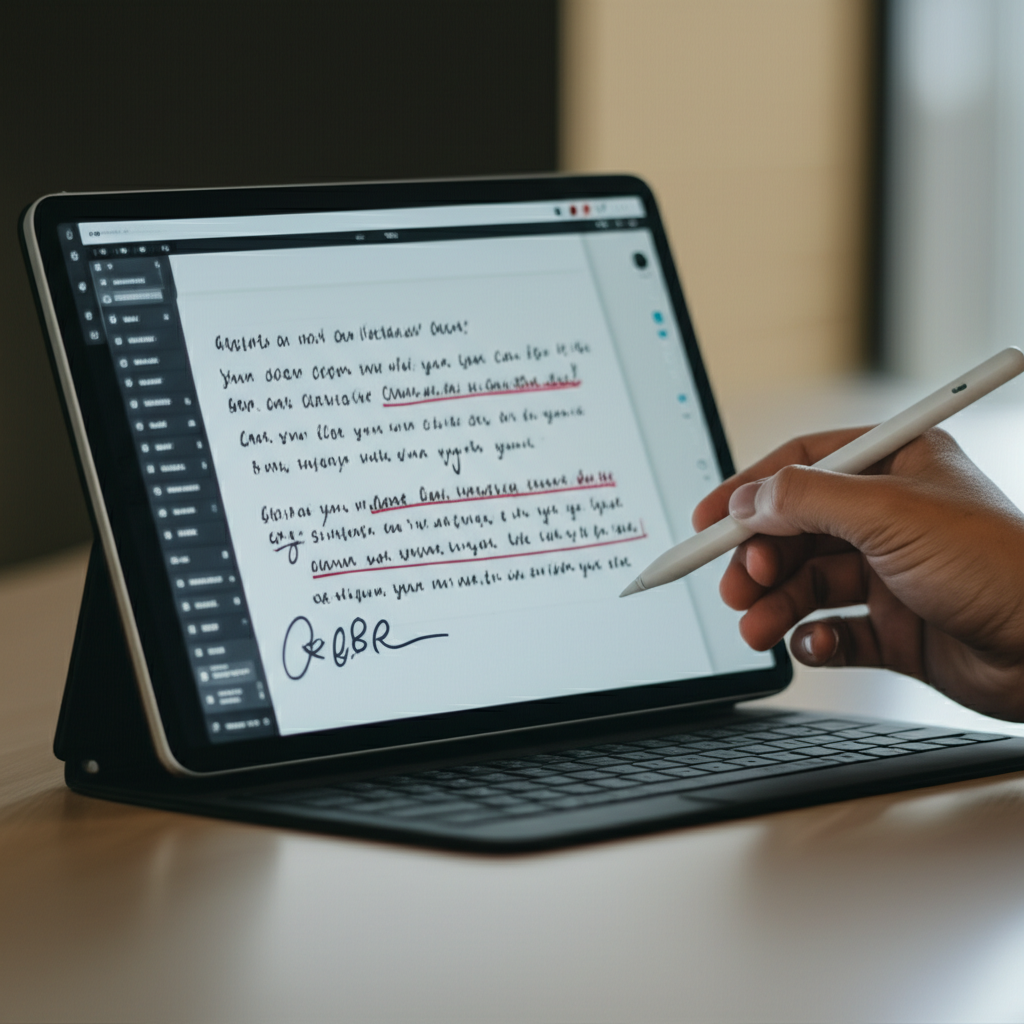
Using Apple Pencil: With an iPad and Apple Pencil, writing on PDFs feels natural. The Markup tools in Files, Preview, and most PDF apps support pressure-sensitive handwriting.
Third-Party Apps:
- PDF Expert — Professional-grade PDF writing with excellent Apple Pencil support
- GoodNotes — Great for handwritten annotations and note-taking on PDFs
- Adobe Acrobat — Cross-platform option with cloud sync
Method 5: Write on PDFs on Android
Google Drive: Open PDFs stored in Drive and use the built-in annotation tools. Limited to fillable forms for typed input.
Adobe Acrobat Reader: Free app that lets you fill, sign, and annotate PDFs. Works on any Android device.
Xodo: Full-featured PDF app with handwriting support, text tools, and cloud storage integration.
Adding Signatures to PDFs
Signatures deserve special attention since they're the most common "writing" task.
Create a reusable signature: Most tools let you draw, type, or upload a signature image once and reuse it. Adobe Reader, Preview, and online tools all support saved signatures.
Signature methods:
- Draw with mouse/trackpad — Quick but often looks shaky
- Draw with stylus/finger on touchscreen — More natural result
- Type your name — Some tools convert typed names to signature-style fonts
- Upload an image — Scan your real signature for authentic results
Legal validity: In most jurisdictions, electronic signatures on PDFs are legally binding. The ESIGN Act (US) and eIDAS (EU) recognize them as equivalent to handwritten signatures for most purposes.
When Manual Writing Doesn't Scale
Writing on one PDF is straightforward. Writing on dozens—filling the same fields with different data—becomes tedious. That's where automation helps.
AutoFillPDF approaches writing on PDFs differently:
Instead of manually clicking and typing in each location, you provide your data and the AI identifies where it belongs. This works even on:
- Scanned documents without form fields
- Flattened PDFs that look fillable but aren't
- Inconsistent layouts where fields move between pages
- Forms you've never seen before
The result: properly filled PDFs without clicking through each field manually.
Best Practices for Writing on PDFs
Preserve the original. Always keep an unmodified copy before writing on a PDF.
Check compatibility. Open your edited PDF in a different viewer to ensure your writing appears correctly.
Match the document style. When adding text, use a font and size that matches the original document for professional results.
Consider file size. Handwritten annotations (especially with pressure sensitivity) can significantly increase file size.
Use appropriate tools:
- Quick notes → Highlight and sticky notes
- Form filling → Fill & Sign or text tools
- Signatures → Dedicated signature tools for proper positioning
- Batch filling → AI-powered tools like AutoFillPDF
Common Problems and Solutions
"My handwriting doesn't appear on the saved PDF" Some apps display annotations without saving them. Make sure you explicitly save (not just close) the file, and try opening it in a different viewer to verify.
"I can't draw on this PDF" The PDF may have security restrictions preventing annotations. Try a tool that works with protected PDFs, like AutoFillPDF.
"My text doesn't line up with the form fields" You're placing text as annotations rather than filling actual form fields. Use Fill & Sign mode for better alignment, or use AI-powered field detection.
"The writing looks different on another computer" Fonts embedded in your annotations may not be available on other systems. Use common fonts like Helvetica or Arial, or flatten the PDF after editing to lock in the appearance.
Write on Any PDF with AutoFillPDF
Stop manually positioning text on every form. AutoFillPDF uses AI to identify fields and place your content accurately—even on scanned documents or PDFs without form fields.
Upload your PDF, provide your data, and download the completed document. No clicking through fields. No alignment issues. No font matching headaches.
Try it free: AutoFillPDF
Related Guides
FAQs
Can I write on a PDF for free? Yes. Preview on Mac, Microsoft Edge on Windows, the Files app on iOS, and online tools like PDFgear and Sejda all offer free PDF writing capabilities.
How do I write on a PDF without Adobe? Use Preview (Mac), Microsoft Edge (Windows), or any online PDF editor like iLovePDF, Smallpdf, or PDFgear. These tools let you add text and draw on PDFs without Adobe software.
Can I write on a PDF with my finger or stylus? Yes. Touchscreen devices support freehand drawing on PDFs. iPad with Apple Pencil offers the best experience, but any tablet or touchscreen laptop works.
What's the best app to write on PDFs? For Mac: Preview (free, built-in). For iPad: PDF Expert or GoodNotes. For Windows: Adobe Acrobat Reader (free). For online: PDFgear (free, no limits). For batch filling: AutoFillPDF.