
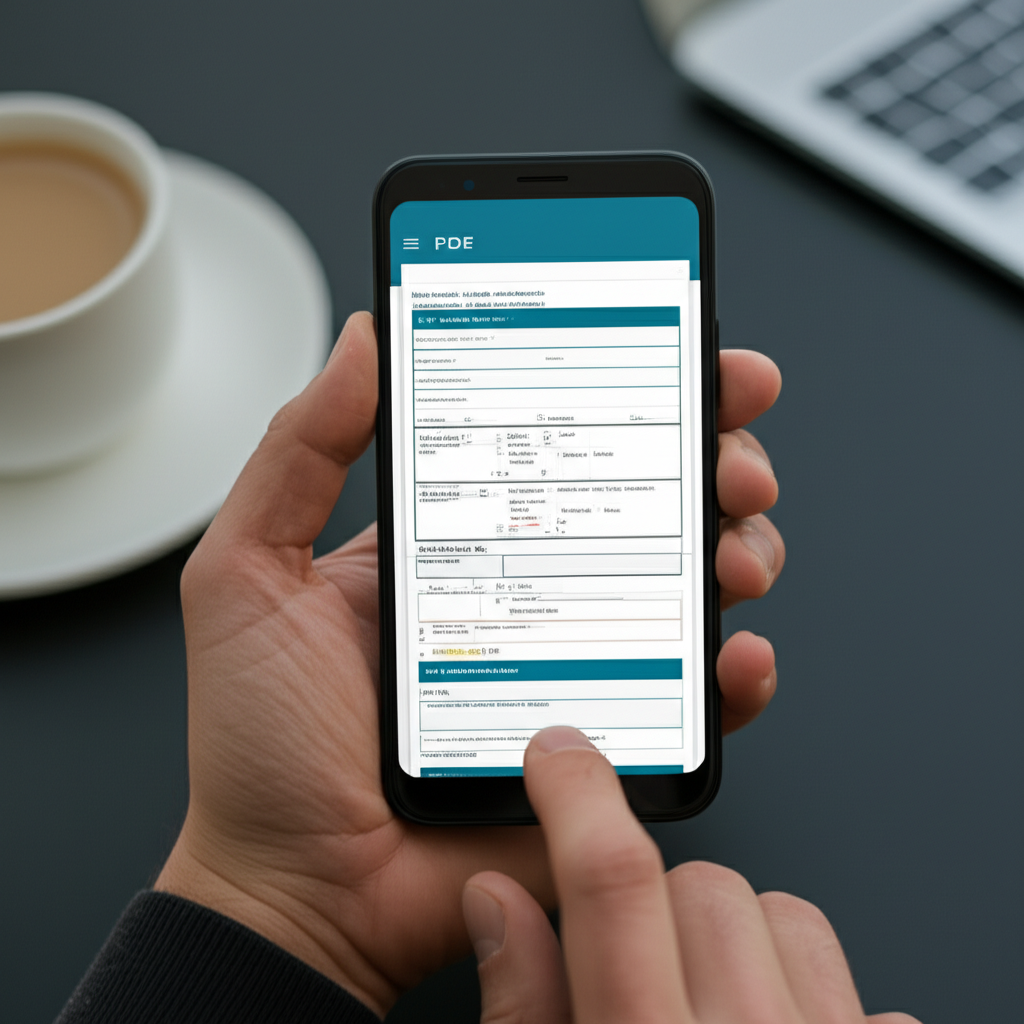
How to Fill Out a PDF Form on Android
Android handles PDF forms well once you know which tools to use. Here's every free and paid method for filling PDF forms on your Android phone or tablet.
Method 1: Google Drive (Free, Pre-installed)
Google Drive is already on your Android device and can fill basic PDF forms.
Steps:
- Open the Google Drive app
- Navigate to your PDF (or upload one via + icon)
- Tap the PDF to open it
- Look for Fill out form at the bottom
- Tap form fields to enter text
- Tap Save when done
Limitations:
- Only works with properly structured fillable PDFs
- No support for XFA forms (Adobe LiveCycle)
- Can't add text to non-fillable PDFs
- No signature tool built-in
If you don't see "Fill out form," the PDF either isn't fillable or uses incompatible form technology.
Method 2: Adobe Acrobat Reader (Free App)
Adobe's free app is the most capable PDF form filler for Android.
Download: Search "Adobe Acrobat Reader" in the Play Store
Steps:
- Open your PDF in Acrobat Reader
- Tap the pencil icon at the bottom
- Select Edit PDF or Fill & Sign
- Tap fields to enter text
- Use the toolbar for signatures, dates, and checkmarks
- Tap Done and save
Fill & Sign works on any PDF: Even if the PDF doesn't have form fields, Fill & Sign lets you tap anywhere and add text. This is crucial for scanned forms or flat PDFs.
Signatures:
- Tap the signature icon in the toolbar
- Draw your signature with your finger
- Save it for reuse on future documents
- Tap to place on the PDF
Method 3: Xodo PDF Reader (Free)
Xodo offers a solid free alternative to Adobe.
Features:
- Fill fillable PDF forms
- Add text to any PDF via annotations
- Sign documents with finger-drawn signatures
- Sync with Google Drive, Dropbox, OneDrive
- No account required for basic use
Steps:
- Install Xodo from Play Store
- Open your PDF
- Use form tools for fillable PDFs
- Use annotation tools for non-fillable PDFs
- Save and share
Method 4: PDFgear (Free, No Limits)
PDFgear offers a completely free PDF editor with no watermarks.
Steps:
- Install PDFgear from Play Store
- Open your PDF
- Fill form fields or add text annotations
- Sign with the signature tool
- Save the completed form
Why PDFgear:
- Truly free—no premium tier required for form filling
- No watermarks on output
- Works offline
- Clean interface
Method 5: Online Tools via Chrome
Use web-based PDF tools directly in your Android browser.
Smallpdf:
- Open Chrome and go to smallpdf.com
- Select Edit PDF
- Upload your PDF
- Add text and signatures
- Download the completed form
iLovePDF: Similar process at ilovepdf.com. No account needed for basic use.
Adobe Acrobat Online: Free Fill & Sign tool at adobe.com/acrobat/online/sign-pdf.html
Online tools work but are slower than native apps and require internet.
Method 6: DocHub (Free with Limits)
DocHub works as both an app and web service.
Steps:
- Install DocHub from Play Store (or use web version)
- Upload your PDF
- Fill fields and add signatures
- Download or share directly
Free tier includes: 3 documents per month, basic form filling, and signatures.
Filling Non-Fillable PDFs on Android
Many PDFs look like forms but don't have actual form fields. Here's how to fill them anyway:
Adobe Acrobat Fill & Sign:
- Open the PDF in Adobe Acrobat Reader
- Tap the pencil icon → Fill & Sign
- Tap anywhere on the document
- Type your text
- Drag to reposition if needed
Xodo Annotations:
- Open in Xodo
- Tap the pen icon for annotation mode
- Select the text tool
- Tap where you want to add text
- Type and position
Online Editors: Most web-based tools (Smallpdf, iLovePDF, PDFgear online) let you add text to any PDF, not just fillable ones.
Adding Signatures on Android
Every method handles signatures slightly differently:
Adobe Acrobat Reader: Best signature experience. Draw once, save for reuse. Supports typed, drawn, or image signatures.
Google Drive: No built-in signature tool. Use a third-party app or sign before uploading.
Xodo: Draw signature, save to library, place on documents. Works well.
Online tools: All major online editors include signature tools. Draw with your finger on the touch screen.
Tips for Better Android PDF Filling
Rotate to landscape: Wide forms are easier to fill in landscape orientation.
Zoom in: Pinch to zoom before tapping small fields. Accuracy improves significantly.
Use a stylus: A basic capacitive stylus (under $10) makes signatures look much better than finger-drawn ones.
Download first: Don't fill forms directly from email attachments. Download to your device first to ensure saves work properly.
Check your work: After saving, reopen the PDF to verify all fields saved correctly. Some apps display edits that don't actually persist.
Troubleshooting Android PDF Forms
"I can't type in the form fields" The PDF may not have interactive fields. Use Adobe Acrobat's Fill & Sign mode instead, which works on any PDF.
"Google Drive won't let me fill the form" The PDF may use XFA forms (an Adobe format) that Google Drive doesn't support. Use Adobe Acrobat Reader instead.
"My signatures look terrible" Sign more slowly with your finger, or use a stylus. Adobe Acrobat also offers typed signatures with script fonts.
"The filled PDF is blank when I send it" Some apps display edits temporarily. Make sure you tap Save/Done before sharing. Try "Save As" to create a new file with edits embedded.
"The app keeps crashing" Large PDFs can overwhelm older Android devices. Try a lighter app like PDFgear, or use an online tool in Chrome.
When Mobile Filling Isn't Practical
Android PDF filling works for occasional forms. It struggles with:
- Complex forms with many fields — Tapping each field on a phone screen is tedious
- Batch processing — You can only fill one form at a time
- Scanned documents — Field detection on scans is unreliable
- Repetitive data entry — Same information, different forms, every time
AutoFillPDF handles these cases. Access it via Chrome on Android, upload your PDF, provide your information once, and download completed forms. The AI identifies fields automatically—even on scans—so you don't tap through each one manually.
Comparison: Android PDF Filling Options
| App | Cost | Fillable PDFs | Non-Fillable | Signatures |
|---|---|---|---|---|
| Google Drive | Free | Good | No | No |
| Adobe Acrobat | Free | Excellent | Good | Excellent |
| Xodo | Free | Good | Good | Good |
| PDFgear | Free | Good | Good | Good |
| Online tools | Free | Good | Good | Yes |
| AutoFillPDF | $$ | Excellent | Excellent | Yes |
Fill Any PDF on Android—Automatically
AutoFillPDF works in your Android browser. Instead of tapping field by field, upload your PDF, provide your data, and download a completed form. The AI handles field detection and positioning—even on scanned documents that other tools can't parse.
No app required. Works in Chrome.
No manual positioning. AI fills fields accurately.
No format issues. Scans, flat PDFs, and fillable forms all work.
Try it free: AutoFillPDF
Related Guides
FAQs
What's the best free app to fill PDFs on Android? Adobe Acrobat Reader offers the most features for free, including form filling and signatures. PDFgear is also excellent and completely free with no watermarks.
Can I fill a PDF without downloading an app? Yes. Use Google Drive (pre-installed) for basic fillable PDFs, or use online tools like Smallpdf or iLovePDF in Chrome.
How do I sign a PDF on my Android phone? Use Adobe Acrobat Reader's Fill & Sign feature. Tap the signature icon, draw your signature, and place it on the document. Save it for reuse.
Why can't I type in my PDF form on Android? The PDF may not have fillable form fields. Use Adobe Acrobat's Fill & Sign mode, which lets you add text to any PDF regardless of whether it has form fields.
Can I fill PDF forms offline on Android? Yes. Adobe Acrobat Reader, Xodo, and PDFgear all work offline. Download your PDF first, fill it locally, then share when you have connectivity.