Secured PDFs: What You Can and Cannot Do
A secured PDF is designed to control access. The most common scenarios are:
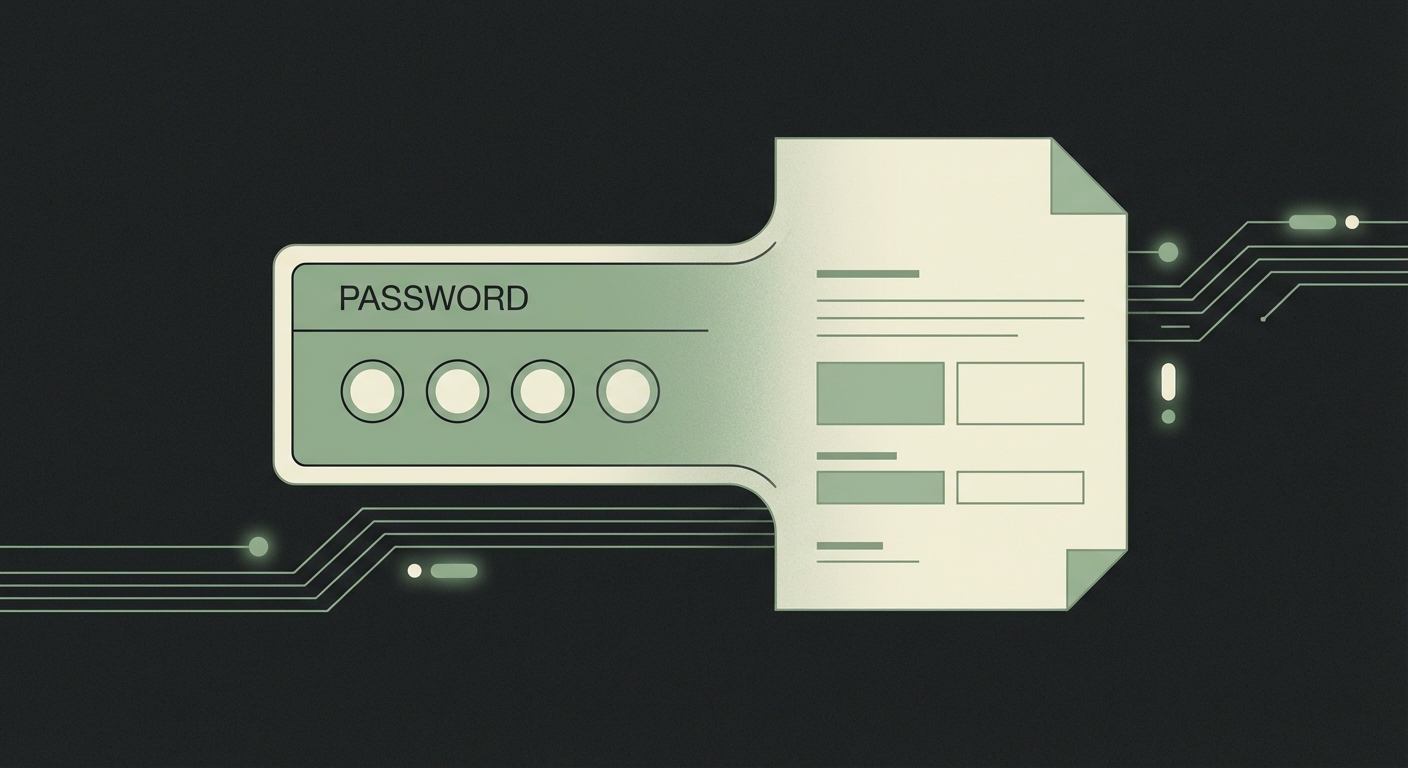
- User password: required to open the file
- Owner password: required to edit or change permissions
Step 1: Confirm Your Access Level
Open the PDF in your editor and check Security settings. This shows whether editing is allowed.
Step 2: Edit With Authorization
If you have the owner password:
- Open the file in your editor.
- Enter the password when prompted.
- Remove restrictions if needed.
- Edit and save a new version.
Step 3: If You Only Have View Access
If the file opens but editing is blocked, request edit permission or an editable copy from the owner. This keeps you compliant and avoids data loss.
Summary
Secured PDFs are safe to edit only when you have explicit authorization. The right password unlocks editing and ensures changes are legitimate and traceable.