
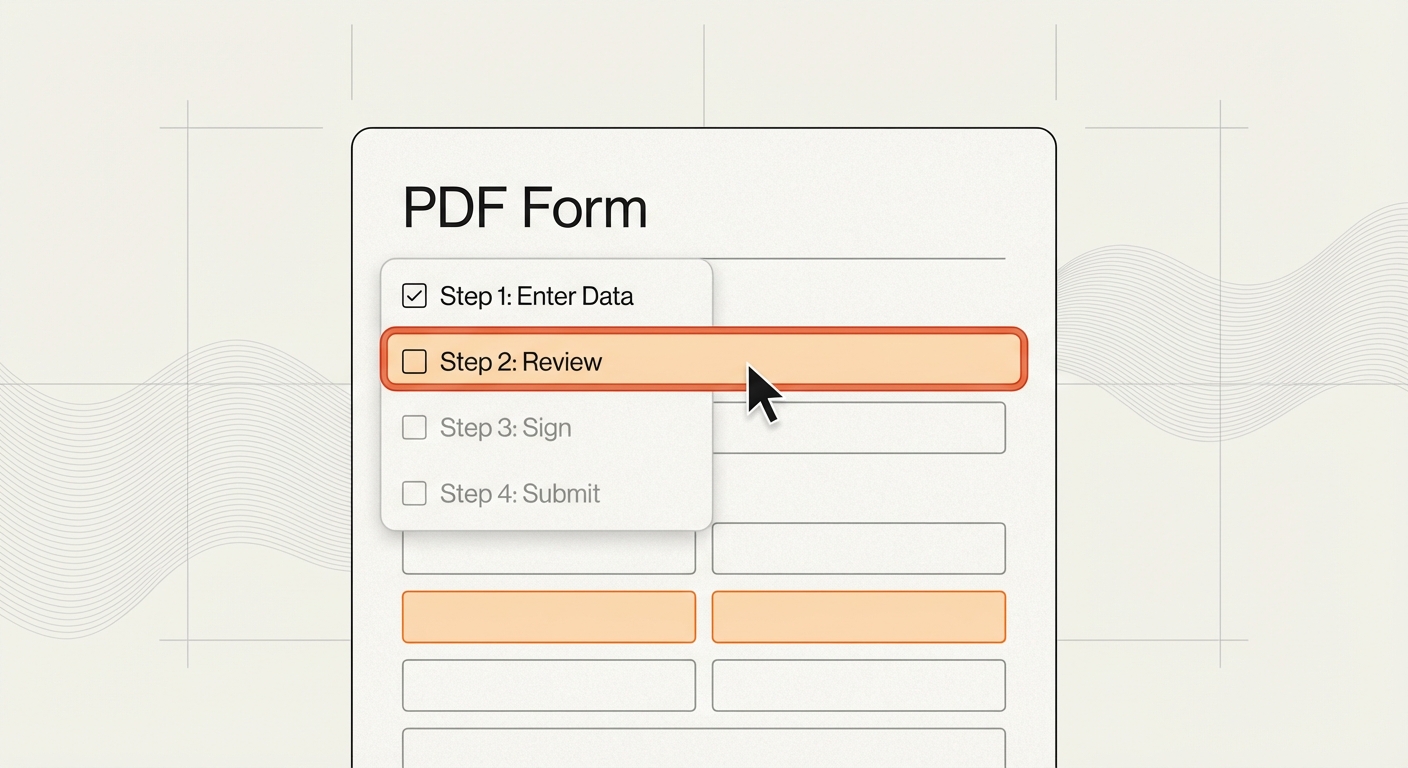
How to Fill Out a PDF Online (Without Losing Data)
If you’ve ever typed into a PDF online only to lose your edits, you’re not alone. The key is using a tool that embeds your input into the PDF rather than just overlaying text in a viewer. Below is a reliable, repeatable workflow.
Why It Breaks So Often
Many PDFs are not real forms. They’re flattened exports or scanned images with no interactive fields. Even when fields exist, they may be locked or misconfigured, which causes data to disappear after download.
Step 1: Confirm the PDF Is Fillable
Try clicking into a field. If your cursor appears, it’s fillable. If not, the PDF is likely a flat scan.
Step 2: Open in a Real PDF Editor (Not Just a Preview)
A proper editor can embed form data and signatures. Adobe’s browser‑based Fill & Sign workflow supports typed fields, checkboxes, initials, and signatures directly in the PDF.
If you need a quick, no‑install option, Microsoft Edge supports typing into form fields and adding text annotations directly in the PDF viewer.
Step 3: Complete Fields and Validate
Fill required fields, then verify any format constraints (dates, phone numbers, SSNs). If a field rejects input, it may have a validation rule built into the PDF.
Step 4: Save and Re‑Open to Verify
Download the filled PDF and re‑open it in a separate viewer to confirm the data is embedded. This avoids the common “looks filled but isn’t” issue.
Step 5: For Non‑Fillable PDFs, Use AI Field Detection
Scanned or flattened PDFs can’t be typed into. Use an AI‑powered tool to detect and create fields automatically, then fill them as usual.
Quick Troubleshooting
- Fields won’t accept input: PDF is non‑fillable.
- Text shifts out of boxes: adjust font size or use autosize.
- Saved file loses values: you’re editing a preview layer, not the PDF.
Best Practices
- Use the most recent version of the form.
- Prefer tools that “flatten” filled values into the document.
- Keep an unedited copy for reference.
How AutoFillPDF Helps
AutoFillPDF handles fillable, non‑fillable, and weirdly formatted PDFs end‑to‑end. It detects fields when none exist, fills existing fields when they do, and uses our own trained models to improve accuracy on messy layouts.
Related guides: Fill PDFs Automatically, Make a PDF Fillable, Edit PDF Text.
FAQs
Can I fill out a PDF online for free? Many tools offer free fill & sign features for basic forms, but advanced features may require a paid plan.
What if the PDF is scanned? You’ll need OCR or AI field detection before you can fill it reliably.